
An automatic trash can might seem like a simple household gadget, but it’s actually a small piece of modern technology. These smart bins use sensors to open and close the lid without anyone touching them. It’s clean, convenient, and can even help prevent the spread of germs.
But what happens when your automatic trash can stops working properly? Maybe the lid won’t open, the sensor is unresponsive, or the can acts strangely. Don’t worry — most issues can be fixed with a simple reset. In this guide, you’ll learn exactly how to reset an automatic trash can, why it might be necessary, common problems, and what to do if a reset doesn’t work.
Whether you’re a first-time owner or have used these bins for years, you’ll find practical steps and expert tips to get your smart trash can back in action.
Understanding How Automatic Trash Cans Work
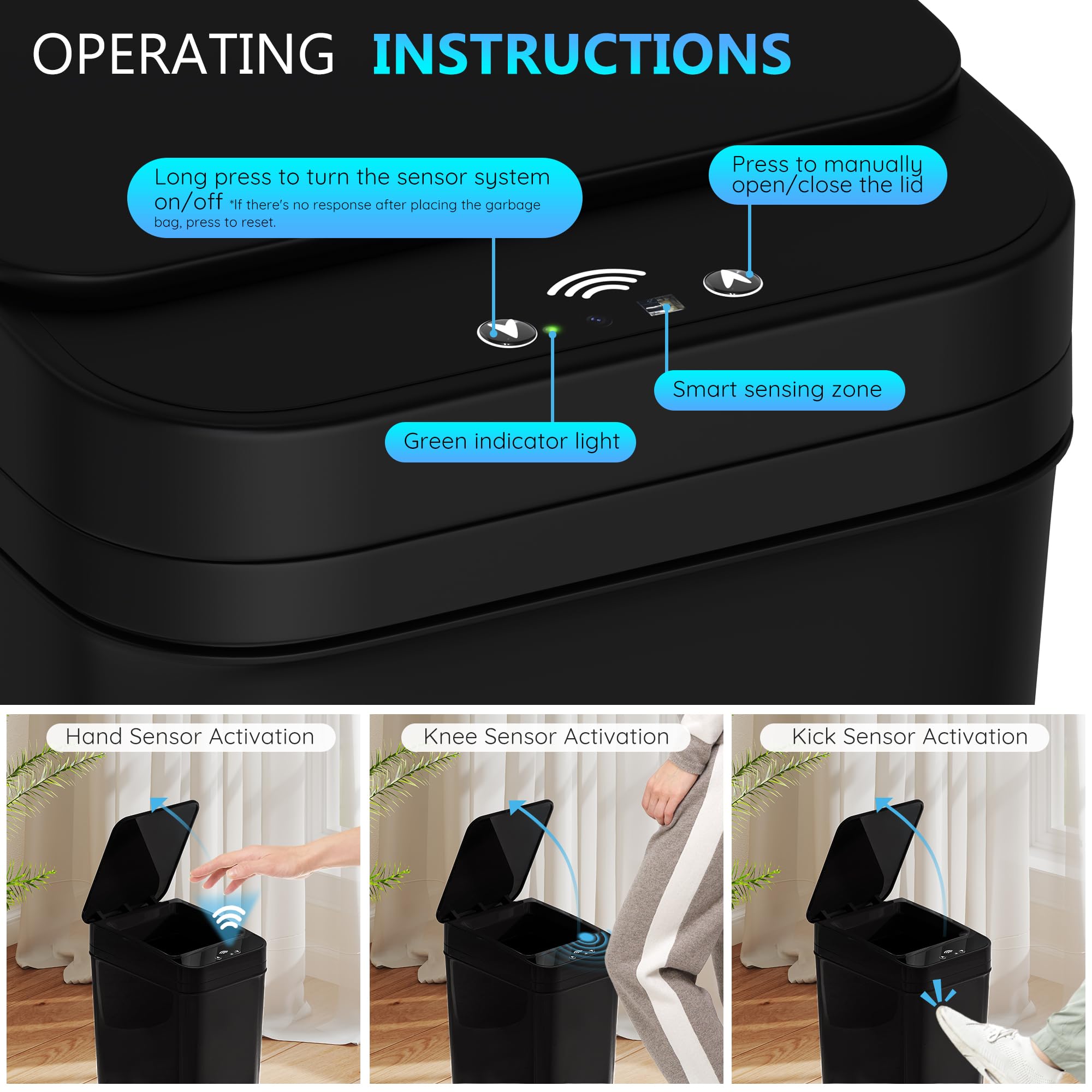
Before you reset, it helps to understand the basics of how these bins function. Most automatic trash cans use motion sensors, usually infrared, to detect a hand or object near the lid. When triggered, a small motor opens the lid. After a set time, the lid closes automatically.
Some models use touchless technology, while others combine motion and touch sensors. Power comes from batteries (often AA or D size), though a few use built-in rechargeable batteries or plug into the wall. The control board inside manages the sensor, motor, and timing functions.
When any of these parts don’t work as intended, the result can be:
- The lid not opening when you wave your hand
- The lid opening and not closing
- The lid opening randomly without any trigger
- Beeping, blinking lights, or error codes
Most of these issues are related to the sensor, motor, or the control board’s programming. Resetting the system can solve many problems, much like rebooting a computer or phone.
When Should You Reset An Automatic Trash Can?
Not every issue needs a reset. Sometimes, changing batteries or cleaning the sensor is enough. However, a reset is often the first thing experts recommend when:
- The lid doesn’t respond to any motion
- The lid opens and closes repeatedly, even when no one is nearby
- You hear continuous beeping or see blinking lights
- The lid is stuck open or closed, despite having fresh batteries
- After replacing batteries and the can still acts strangely
- After a power surge or if the bin was dropped
If your bin is showing any of these signs, a reset is a quick and safe first step.
The Universal Reset Process: Step-by-step
Many automatic trash cans have similar reset processes, regardless of brand. Here’s a step-by-step guide that works for most models:
1. Remove The Power Source
Turn off the trash can if there’s a power switch. If not, open the battery compartment and remove all batteries. For plug-in models, unplug the power adapter.
2. Wait For The Internal Circuits To Discharge
Leave the trash can unpowered for at least 1–2 minutes. This allows any leftover electricity in the circuits to drain, ensuring a full reset.
3. Press And Hold The Reset Or Power Button
If your bin has a dedicated reset button, press and hold it for 3–5 seconds. If there’s only a power button, use that instead. This step “clears” the memory on the control board.
4. Reinstall The Power Source
Put the batteries back in (or plug in the adapter) and make sure they are inserted correctly. If your bin has a power switch, turn it back on.
5. Test The Sensor And Lid
Wave your hand in front of the sensor to check if the lid opens and closes as normal. Repeat the reset process if the issue continues.
Example: Resetting A Simplehuman Sensor Can
Simplehuman is a popular brand, but this process works for many others:
- Turn off the power switch (if present)
- Remove all batteries
- Wait 2 minutes
- Reinstall batteries
- Turn power back on
If the lid doesn’t respond, repeat the steps, making sure the batteries are new and inserted correctly.
Comparing Reset Processes: Popular Brands
Not all automatic trash cans are the same. Here is a look at how the reset process may differ between the most common brands:
| Brand | Power Source | Reset Button? | Reset Steps |
|---|---|---|---|
| Simplehuman | Batteries/Adapter | No | Remove power, wait 2 min, reinstall |
| iTouchless | Batteries/Adapter | Yes | Press reset, remove batteries, wait, reinstall |
| Nine Stars | Batteries | No | Remove batteries, wait, reinstall |
| Amazon Basics | Batteries | No | Remove batteries, wait, reinstall |
| Glad | Batteries/Adapter | Yes | Press reset, remove power, wait, reinstall |
Some bins have a small pinhole reset button (use a paperclip), while others rely only on disconnecting the power. Always check your user manual for the best instructions.

Credit: www.itouchless.com
Troubleshooting: When A Reset Doesn’t Work
Sometimes, a simple reset is not enough. If your automatic trash can still doesn’t work, try these troubleshooting steps:
1. Check The Batteries
Dead or weak batteries are the most common cause of issues. Make sure you use fresh, high-quality batteries. Low power can make the motor weak or make the sensor unreliable.
2. Inspect The Sensor
Sensors can get covered in dust, grease, or fingerprints. Use a soft, dry cloth or a slightly damp tissue to clean the sensor window. Avoid harsh chemicals, as they can damage the sensor.
3. Check For Obstructions
Sometimes, the lid or hinge is blocked by trash or debris. Remove the trash bag and look for anything stuck in the hinges or under the lid.
4. Listen For Unusual Sounds
A grinding noise often means the motor is jammed. If you hear strange sounds after a reset, the mechanical parts may need cleaning or repair.
5. Recalibrate The Sensor (if Available)
Some higher-end bins allow you to recalibrate the sensor. Check your manual for instructions. This step can help if the sensor is opening at the wrong time or missing your hand.
6. Try A Hard Reset
If the above steps fail, leave the trash can without power for 10–20 minutes. This is sometimes called a “hard reset” and can solve deeper issues in the electronics.
7. Check For Firmware Updates
A few smart trash cans can connect to a phone app or computer. If yours does, check if there’s a firmware update that could fix bugs or improve performance.
8. Contact Customer Support
If all else fails, reach out to the manufacturer’s support team. Many offer online troubleshooting tools or repair services. Keep your purchase receipt and serial number handy.
Common Mistakes To Avoid During Reset
Resetting an automatic trash can is simple, but mistakes are easy to make. Avoid these common errors:
- Not waiting long enough after removing batteries. The circuits need time to discharge.
- Using old or mixed batteries. Always use a full set of new, matching batteries.
- Forcing the lid open or closed. This can break the motor or gears.
- Skipping the cleaning step. A dirty sensor can cause false triggers or missed detections.
- Not reading the user manual. Each model may have unique features or reset steps.

Credit: www.dentalfactor.it
How To Maintain Your Automatic Trash Can For Fewer Resets
Regular care can keep your automatic trash can working smoothly and reduce the need for resets.
1. Keep The Sensor Clean
Wipe the sensor window weekly with a dry or lightly damp cloth. Avoid spraying cleaner directly onto the sensor.
2. Replace Batteries On Schedule
Most bins need new batteries every 6–12 months, depending on use. Some models have a battery indicator light. Change batteries when you notice slower lid movement or missed triggers.
3. Don’t Overload The Bin
If the lid hits overflowing trash, it puts stress on the motor and gears. Empty the bin regularly and avoid packing waste above the rim.
4. Use The Right Trash Bags
A bag that’s too thick or oversized can interfere with the lid or sensor. Use bags designed for your can’s size.
5. Check For Software Updates
If your smart trash can has Wi-Fi or Bluetooth, check the app for updates. These can improve reliability and add features.
Data: How Often Do Automatic Trash Cans Need Resets?
Manufacturers rarely publish statistics, but surveys and user reviews give a good idea. Here’s what you can expect:
| Brand | Average Time Between Resets | Common Issues Requiring Reset |
|---|---|---|
| Simplehuman | 6–12 months | Lid stuck, sensor unresponsive |
| iTouchless | 3–9 months | Random opening/closing |
| Nine Stars | 4–8 months | Beeping, lid delay |
| Generic/No Name | 2–6 months | Sensor failure, motor jam |
While some users go a year or more without resetting, others find they need to reset every few months. It often depends on how clean you keep the sensor and how often you change batteries.
Real-world Examples: When A Reset Saved The Day
Example 1: The Non-stop Lid
Maria’s automatic trash can lid kept opening and closing every few seconds. She thought it was broken, but after removing the batteries for 2 minutes and reinstalling them, the lid worked perfectly. A simple reset fixed the control board glitch.
Example 2: The Silent Sensor
James noticed that his trash can stopped responding to his hand. He changed the batteries, but nothing happened. After trying a hard reset (no power for 15 minutes), the bin came back to life. Dust on the sensor had caused the problem, and the reset helped after cleaning.
Example 3: The Stuck Open Lid
Liam’s trash can lid was stuck open after a power surge. He followed the reset steps, but it didn’t help. After waiting 10 minutes with no batteries, the lid reset itself and closed normally. A power surge had confused the electronics, and the longer reset time was key.
These examples show that many problems have simple solutions if you know what to do.
Important Differences: Battery Vs. Plug-in Trash Cans
Both types are common in homes and offices, but the reset process is nearly the same. Here are a few key differences:
- Battery-powered cans: Easy to move, no cords, but need regular battery changes.
- Plug-in cans: No need for batteries, but placement is limited by outlet location.
Some plug-in models also have batteries as backup. Always remove all power sources during a reset for best results.
Credit: www.amazon.com
Advanced Tips: Getting The Most From Your Automatic Trash Can
A few extra tricks can help your bin last longer and need fewer resets:
- Store the bin away from direct sunlight. Strong light can interfere with sensors.
- Avoid placing the bin near vents or fans. Air movement can trigger the sensor.
- Label the battery compartment with the date you last changed batteries. This helps you track performance.
- If your trash can is Wi-Fi enabled, set up notifications for low battery or errors.
- Teach family or coworkers how to reset. A simple reset can solve most problems, saving time and frustration.
How To Tell When A Trash Can Needs Replacement
Even with the best care, automatic trash cans don’t last forever. Here’s how to know when it’s time for a new one:
- The motor is weak or noisy even after resetting
- The sensor stops working despite cleaning and new batteries
- The lid won’t close, or gears are broken
- The control board is fried after a power surge
Most automatic trash cans last 3–7 years with normal use. Cheaper models may fail sooner, while premium brands can last longer. If repairs and resets don’t solve your problem, investing in a new bin is the best option.
Frequently Asked Questions
How Do I Know If My Automatic Trash Can Needs A Reset?
If your trash can is unresponsive, the lid is stuck, or it opens and closes randomly, a reset is a smart first step. Other signs include beeping, flashing lights, or issues after changing batteries.
Can I Reset My Trash Can Without A Reset Button?
Yes. For most models, simply remove the batteries or unplug the can for 1–2 minutes. This will clear the control board and reset the system, even if there is no dedicated reset button.
What Should I Do If My Trash Can Still Doesn’t Work After A Reset?
Check the batteries, clean the sensor, and inspect for obstructions. If these steps don’t help, try a longer hard reset (10–20 minutes). If your bin is still not working, contact customer support or check for updates.
How Often Should I Reset My Automatic Trash Can?
There’s no set schedule. Most people reset their trash can only when it stops working properly. On average, a reset is needed every 3–12 months, depending on use and model.
Is It Safe To Clean The Sensor With Water Or Cleaning Spray?
Use only a dry or slightly damp cloth. Spraying water or cleaner directly onto the sensor can damage the electronics. If you need more cleaning power, spray cleaner onto a cloth, not the sensor.
Resetting an automatic trash can is a quick, easy way to fix most common problems. With these steps, you’ll spend less time troubleshooting and more time enjoying the convenience of touchless trash. If you need more details about smart trash can technology, check out the Wikipedia entry on smart bins. Take care of your bin, and it will keep your space clean and hassle-free for years to come.