If your Samsung fridge is not working as it should, you might hear the advice, “Just reset it. ” But how do you actually reset a Samsung refrigerator safely and correctly? Is there a universal button, or do you need to do more?
Whether your fridge has stopped cooling, is showing an error code, or the ice maker isn’t working, understanding how to reset your appliance can save you time and money. In this guide, we’ll explore all the methods, when to use them, and what to do if things don’t go as planned.
You’ll learn not just the basics, but also tips and real-world examples to make sure you’re never stuck with a broken fridge.
Why Reset A Samsung Fridge?
A reset is not just a “magic fix.” It’s a tool used to clear errors, refresh the system, or bring the fridge back to factory settings. The most common reasons people reset their Samsung fridges include:
- Error codes: When the display shows letters and numbers (like “5E” or “22E”), a reset can sometimes clear them.
- Cooling issues: If the fridge or freezer stops cooling properly.
- Ice maker not working: Resetting can jumpstart the ice-making process after repairs or maintenance.
- After a power outage: Power surges can disrupt normal operation.
- Unresponsive display panel: Sometimes the control panel may freeze or go blank.
Not every problem should be solved with a reset. Some issues, like leaking water or strange noises, may need a technician.
Safety First: Precautions Before Resetting
Before touching any controls or unplugging your fridge, safety is key. Here’s what you should always do:
- Check your manual: Samsung fridges come in many models. Some have special reset methods.
- Save your food: A reset might turn off the fridge or freezer for several minutes. Move any sensitive food to a cooler if you expect a long reset.
- Use dry hands: Electricity and water don’t mix. Make sure your hands are dry to avoid shocks.
- Know your warranty: In rare cases, frequent resets or DIY fixes can affect your warranty. If your fridge is new, contact Samsung first.
Non-obvious insight: Many people forget that some error codes signal real hardware problems—not just a software glitch. Resetting may clear the code but not fix the underlying issue.
Credit: www.samsung.com
Common Samsung Fridge Models And Their Controls
Not all Samsung refrigerators are the same. Some have a Family Hub touchscreen, while others use simple LED displays. Here’s a quick look at popular types and their controls:
| Model Type | Main Control Location | Reset Method |
|---|---|---|
| French Door (with display) | Front display panel | Button combination or power cycle |
| Top Freezer | Inside top, near light | Power cycle |
| Family Hub (touchscreen) | Touchscreen panel | Touchscreen menu reset |
| Side-by-Side | Front display panel | Button combination |
| Older models (no display) | Inside fridge | Manual power off/on |
Experience-based tip: If your fridge has Wi-Fi, it may also have a “SmartThings” app connection. Sometimes, you can reset functions from your phone.
Different Ways To Reset A Samsung Fridge
There are several ways to reset a Samsung refrigerator. The right method depends on your fridge model and the type of problem.
1. Soft Reset (control Panel Or Buttons)
This is the easiest and safest way for most modern Samsung fridges.
How to do a soft reset:
- Find the reset buttons. On most Samsung models, look for “Power Freeze” and “Power Cool” buttons on the control panel.
- Press and hold both buttons at the same time for 8–10 seconds.
- Listen for a chime or watch the display blink. This shows the fridge is restarting.
Why use this?
A soft reset is great if the display is acting strange, or after a small power problem.
Non-obvious insight: Holding the buttons for too short or too long can sometimes do nothing—or trigger a different function, such as turning off cooling. Always watch the display for confirmation.
2. Hard Reset (power Cycle)
Sometimes, a full power reset is needed—especially for deeper glitches or if the fridge isn’t responding at all.
Steps for a hard reset:
- Unplug the fridge from the wall outlet.
- Wait at least 5 minutes (some experts recommend 10 minutes to be safe).
- Plug the fridge back in.
- Wait for the system to reboot—this may take several minutes. The display may flash or go blank and then return to normal.
Important: Never unplug your fridge too often. This can damage the compressor or other parts.
Practical example: If your Samsung fridge is not cooling after a power outage, a hard reset can sometimes bring it back to life.
3. Reset Using The Family Hub Touchscreen
If you have a Samsung Family Hub fridge, the reset is done through the touchscreen.
How to reset with Family Hub:
- Go to Settings on the touchscreen.
- Tap About Family Hub.
- Tap Reset.
- Follow the instructions on screen.
This will reset the software settings but not always the cooling system.
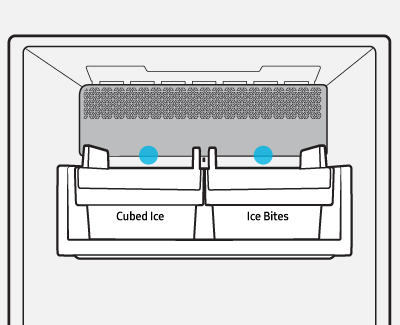
4. Resetting The Ice Maker
Some Samsung fridges have a specific ice maker reset button.
Steps to reset the ice maker:
- Open the ice maker compartment (usually inside the freezer).
- Look for a small reset button (often labeled “TEST”).
- Press and hold the button until you hear a chime (about 5–10 seconds).
- The ice maker will run a test cycle. Wait a few hours for new ice.
Common mistake: Some users press the ice maker reset repeatedly. This can jam the mechanism. Only reset once, then wait.
5. Factory Reset (advanced)
A factory reset brings your fridge back to original settings. This is rare but useful if other methods fail, or you want to erase all Wi-Fi and user settings.
Factory reset steps (if available):
- Locate the Settings menu on the display or Family Hub.
- Select Factory Reset.
- Confirm your choice. The fridge will reboot and clear all personal settings.
Warning: This will erase Wi-Fi, app connections, and sometimes stored preferences.
When To Reset And When Not To
Resetting is not always the answer. Here’s when it’s appropriate:
Good times to reset:
- After a power surge
- If a small error code appears (like “OF” or “5E”)
- To refresh the system after cleaning the coils or filters
- If the display panel is frozen
When to avoid resetting:
- If you hear loud noises or see water leaks
- If the fridge is very warm and food is spoiling
- If the same error code returns after a reset
- When the fridge smells burnt or electrical
In these cases, a reset may hide the real problem. Call a technician.
How To Reset Specific Error Codes
Samsung fridges often display codes to help users and technicians. Some can be cleared with a reset, others mean real trouble.
Common Error Codes And What They Mean
| Error Code | Meaning | Can a Reset Help? |
|---|---|---|
| 5E | Fridge defrost problem | Sometimes |
| 22E | Fan motor error | Rarely |
| OF or O FF | Demo mode on | Yes |
| PC ER | Communication error | Sometimes |
| 88 88 | Power outage or glitch | Yes |
Example:
If you see “OF” or “O FF,” your fridge is in demo mode—used in stores. Resetting or pressing the “Freezer” and “Power Freeze” buttons together for 5 seconds often turns demo mode off.
Non-obvious insight: If a code returns immediately after a reset, the fridge is likely sensing a real hardware problem. Don’t ignore it.

Credit: www.youtube.com
Resetting Samsung Fridge Wi-fi And Smart Features
Many modern Samsung fridges connect to Wi-Fi for smart features like remote control, recipe apps, and more. Sometimes you need to reset these connections, especially if the fridge won’t connect to your network.
Steps for resetting Wi-Fi:
- Go to the Settings menu on your fridge’s display.
- Select Wi-Fi or Network Settings.
- Tap Reset Network or Forget Network.
- Reconnect to your Wi-Fi by entering the password.
If your fridge is linked to the SmartThings app, you may need to remove and re-add the device after a reset.
Practical tip: Make sure your home Wi-Fi is working well. Weak signals can cause repeated disconnects, making you think the fridge is broken.
What To Do If A Reset Doesn’t Work
If you’ve tried all the reset methods and your fridge is still not working right, don’t panic. Here’s what to do next:
- Double-check the power source. Plug another device into the same outlet to test.
- Look for physical damage. Check the cord, plug, and the back of the fridge.
- Check for blocked vents. Food or items placed too close to vents can cause cooling issues.
- Review the user manual. Find your model’s troubleshooting section.
- Contact Samsung support. Provide your model number and error codes. Sometimes, a reset is not enough, and parts may need replacement.
Non-obvious insight: Sometimes, a fridge will “fake” being off after a reset if the compressor is in a cooling-off period. Wait 10–15 minutes before assuming it’s not working.

Credit: www.wikihow.com
Comparing Reset Methods: Pros And Cons
Resetting methods are not equal. Here’s a quick comparison to help you choose the safest and most effective way.
| Method | Speed | Risk Level | When to Use |
|---|---|---|---|
| Soft Reset (Buttons) | Fast (under 1 min) | Very Low | Minor glitches, display issues |
| Hard Reset (Power Cycle) | Moderate (10–15 min) | Low (if not used often) | Serious or unresponsive problems |
| Factory Reset | Moderate (5–10 min) | Medium (erases settings) | Software issues, Wi-Fi problems |
| Ice Maker Reset | Fast (1–2 min) | Low | Ice maker jams or no ice |
Expert advice: Start with the softest reset and only move to harder methods if needed. This reduces the risk of data loss or hardware wear.
Real-world Scenarios: Troubleshooting Examples
Let’s look at some real-life situations to see how resets help:
Situation 1: Fridge not cooling after a storm
- Try a soft reset. If no change, unplug for 10 minutes (hard reset).
- Still not cooling? Check for error codes. If “88 88,” reset again.
- If nothing works, call a technician—could be a damaged board.
Situation 2: Ice maker stopped after cleaning
- Press the ice maker reset button once. Wait 24 hours.
- If no ice, check if the water line is connected.
- Still not working? It could be a broken valve, not a software issue.
Situation 3: Display shows “PC ER”
- Try a soft reset.
- If the code returns, check the wire harness under the top hinge (common loose connection).
- If wires are fine, call Samsung support.
Situation 4: Wi-Fi won’t connect
- Reset network settings from the display.
- Restart your home router.
- If still failing, try a factory reset on the Family Hub.
Situation 5: Demo mode stuck after delivery
- Press and hold “Freezer” + “Power Freeze” for 5 seconds.
- If demo mode returns, the display board might need replacement.
Maintenance Tips To Avoid Frequent Resets
Resets should not be your first or only solution. With regular care, you can avoid many problems:
- Clean the coils twice a year to help cooling.
- Leave space behind and on the sides of your fridge for airflow.
- Don’t overload the fridge or freezer—blocked vents cause errors.
- Update software if your fridge has Wi-Fi. Outdated firmware can cause bugs.
- Check door seals for leaks. Warm air sneaking in confuses sensors.
Non-obvious tip: Power surges can damage fridges. Using a surge protector helps prevent errors that need resets.
Where To Find Official Help
If you’re unsure or your fridge is still under warranty, contact Samsung:
- Phone: 1-800-SAMSUNG (1-800-726-7864)
- Website: Samsung Support
- SmartThings app: For smart fridges, live chat is available.
Having your model number and serial number ready speeds up the process.
Frequently Asked Questions
How Do I Know Which Reset Method Is Right For My Samsung Fridge?
Check your user manual or the control panel. If your fridge has a display panel, try the soft reset first. For unresponsive fridges, a hard reset (unplugging) is safest. For Family Hub models, use the touchscreen menu.
What Happens To My Food During A Reset?
Most resets are quick (under 10 minutes), so your food should stay safe if you keep the doors closed. For long resets or repairs, move perishable food to a cooler.
Will Resetting My Samsung Fridge Delete My Settings Or Wi-fi Connections?
A soft or hard reset usually does not erase settings. A factory reset will remove Wi-Fi and personal preferences. Always check before choosing the reset method.
Why Does The Same Error Code Keep Coming Back After I Reset?
Some error codes (like “22E” or “PC ER”) mean a real hardware issue. A reset may clear the code, but not fix the problem. If a code returns, contact Samsung or a technician.
Is It Safe To Reset My Samsung Fridge Often?
Occasional resets are fine. But frequent hard resets (unplugging) can stress parts like the compressor. If you need to reset often, your fridge likely has a deeper issue.
Resetting a Samsung fridge is simple once you know the right steps. Take your time, read your model’s manual, and try the safest method first. Most small problems can be fixed at home, but don’t hesitate to ask for help if resets don’t work. With these tips, your fridge should keep running smoothly and your food stays fresh. For more details on error codes and advanced repairs, check resources like Wikipedia.